Welcome to The Diff, our new monthly Delta newsletter. Things move quickly at Zed Industries, and it’s easy to miss an update here and there, so each issue distills everything that happened around Delta into a single read. Each month, you can expect coverage of the biggest features that landed, along with links to any new videos and other blog posts.
And what a month to start with: in September, Delta went into public beta! Thank you to all the private beta testers and everyone who has given us feedback since the launch. Let’s jump in!
Highlights
More provider options
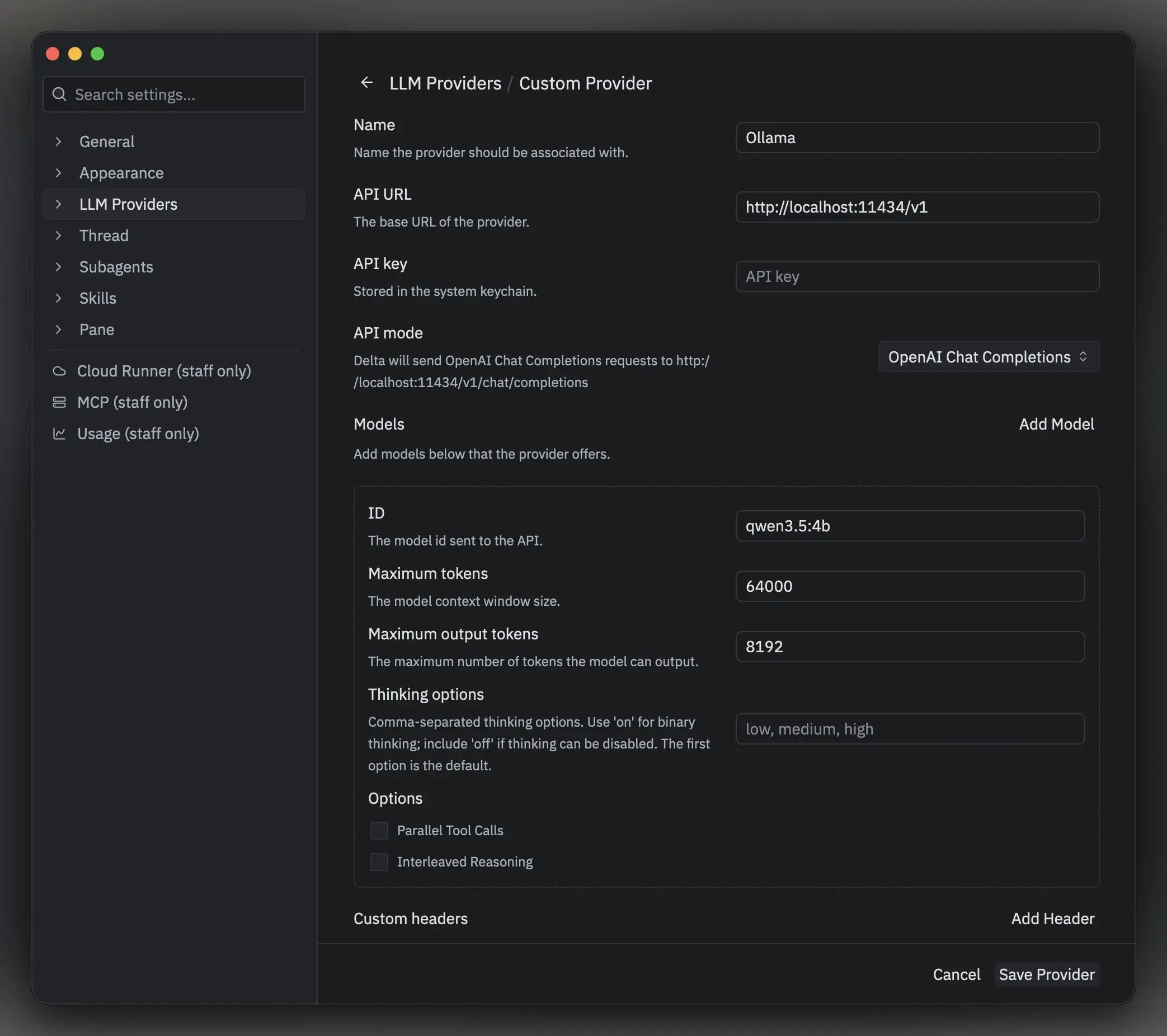
One of your most-requested features landed: Delta now works with providers offering OpenAI- or Anthropic-compatible APIs.
This lets you connect to a wide variety of providers: local ones, such as LM Studio and Ollama, or hosted services like xAI and Z.ai.
Open the settings with cmd-, on macOS and ctrl-, on Windows and Linux.
Navigate to LLM Providers -> Add Provider and fill out the fields to configure a new endpoint.
Use threads to orchestrate other top-level threads
On Delta desktop, ask an agent in one thread to start other top-level threads for independent tasks. Agents can message each other across threads to hand off work, request findings, or report back. Try @-mentioning a thread in your prompt: “Send your findings to @some-thread.”
More ways to organize your work
Previously, we offered the ability to pin threads (cmd-alt-p on macOS and ctrl-alt-p on Windows and Linux), which moved your thread up to the top of the sidebar.
Now, we have more ways for you to organize and spotlight your work.
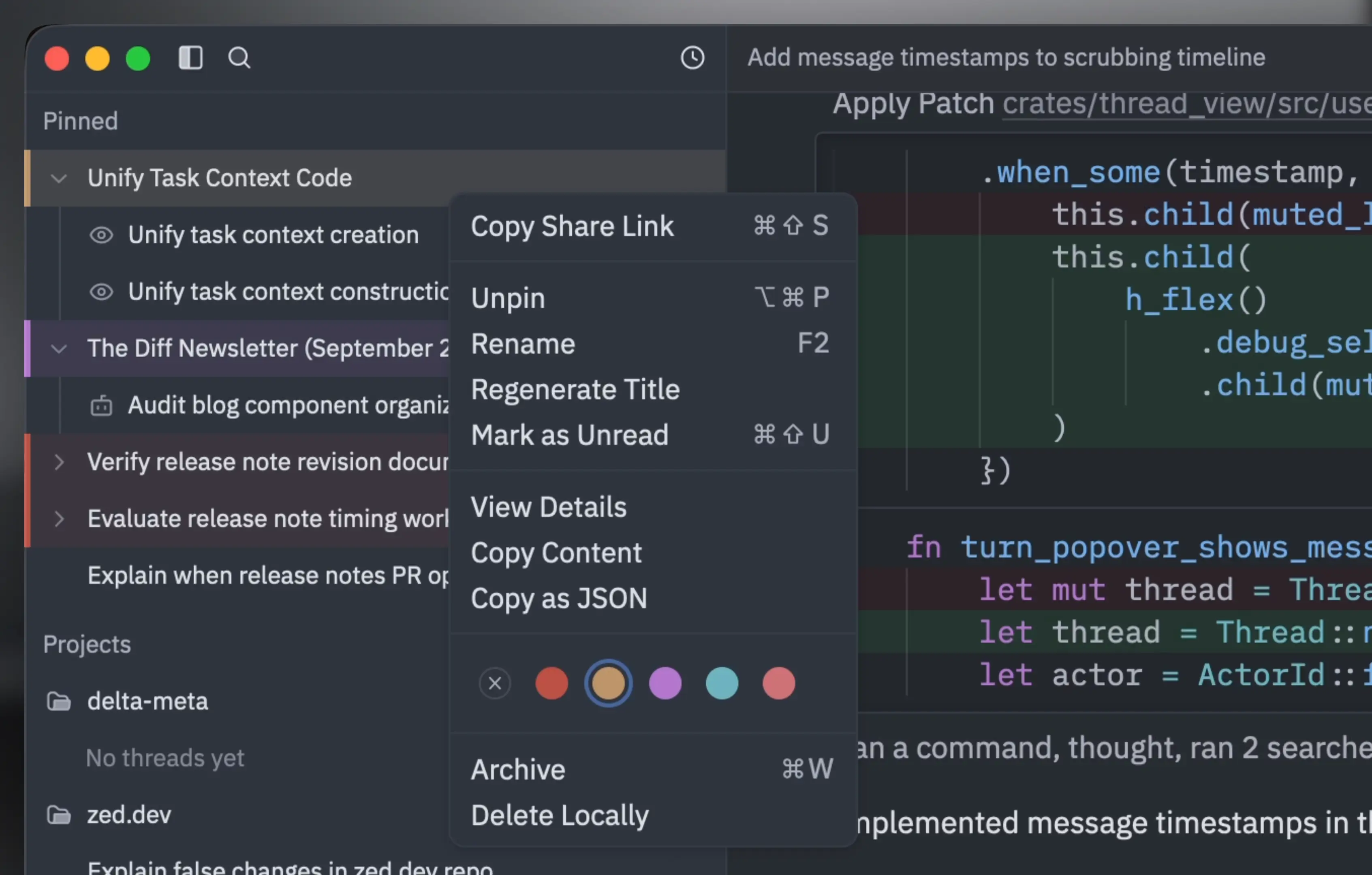
You can color-code your threads by right-clicking the thread and selecting a color.
You may want to color your threads by the state of the work, by project, or maybe you want to group multiple threads attempting the same fix, but using different implementations.
It’s up to you.
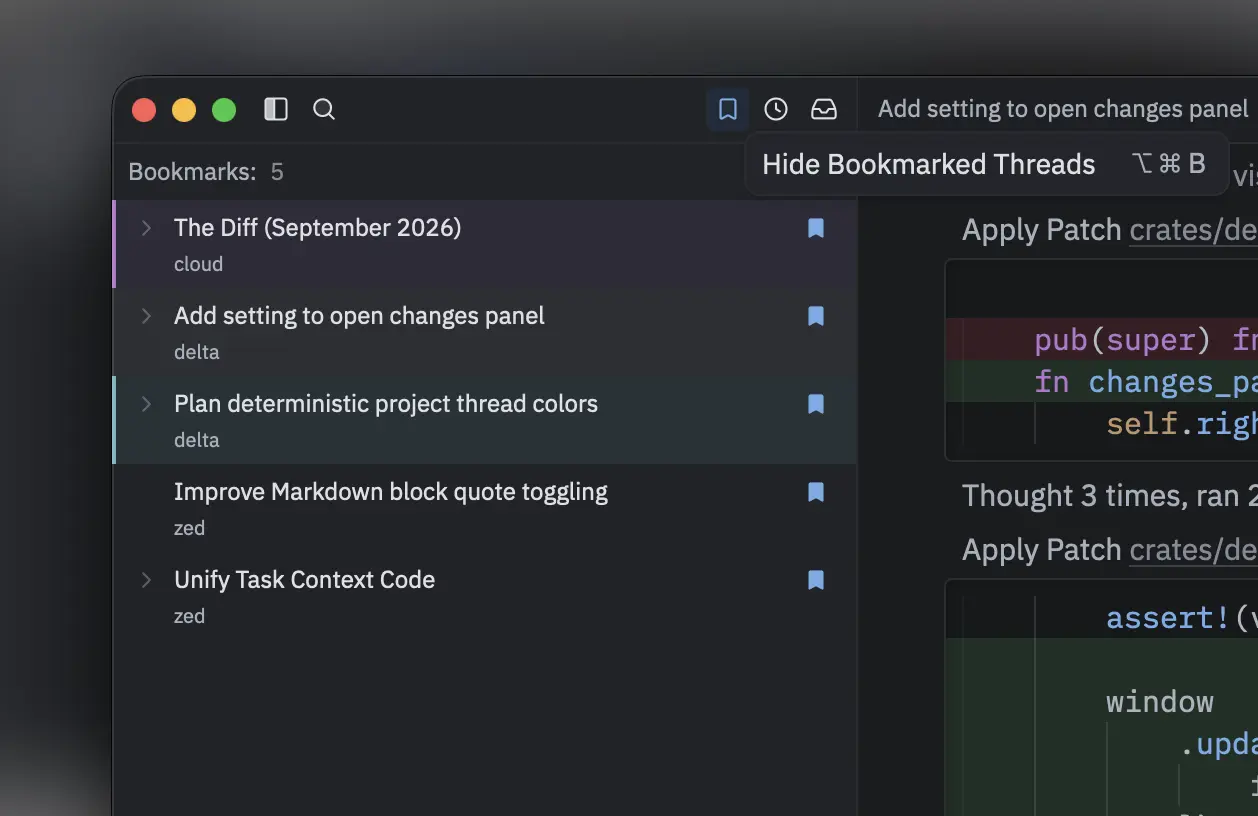
Thread bookmarking also landed.
Bookmark a thread with cmd-d on macOS and ctrl-d on Windows and Linux, or via the right-click context menu on the thread.
You can filter down to bookmarked threads via the Show Bookmarked Threads button in the sidebar.
Bookmarks stay attached to archived threads as well, so they will show up in the filtered view too.
Start threads in existing git worktrees
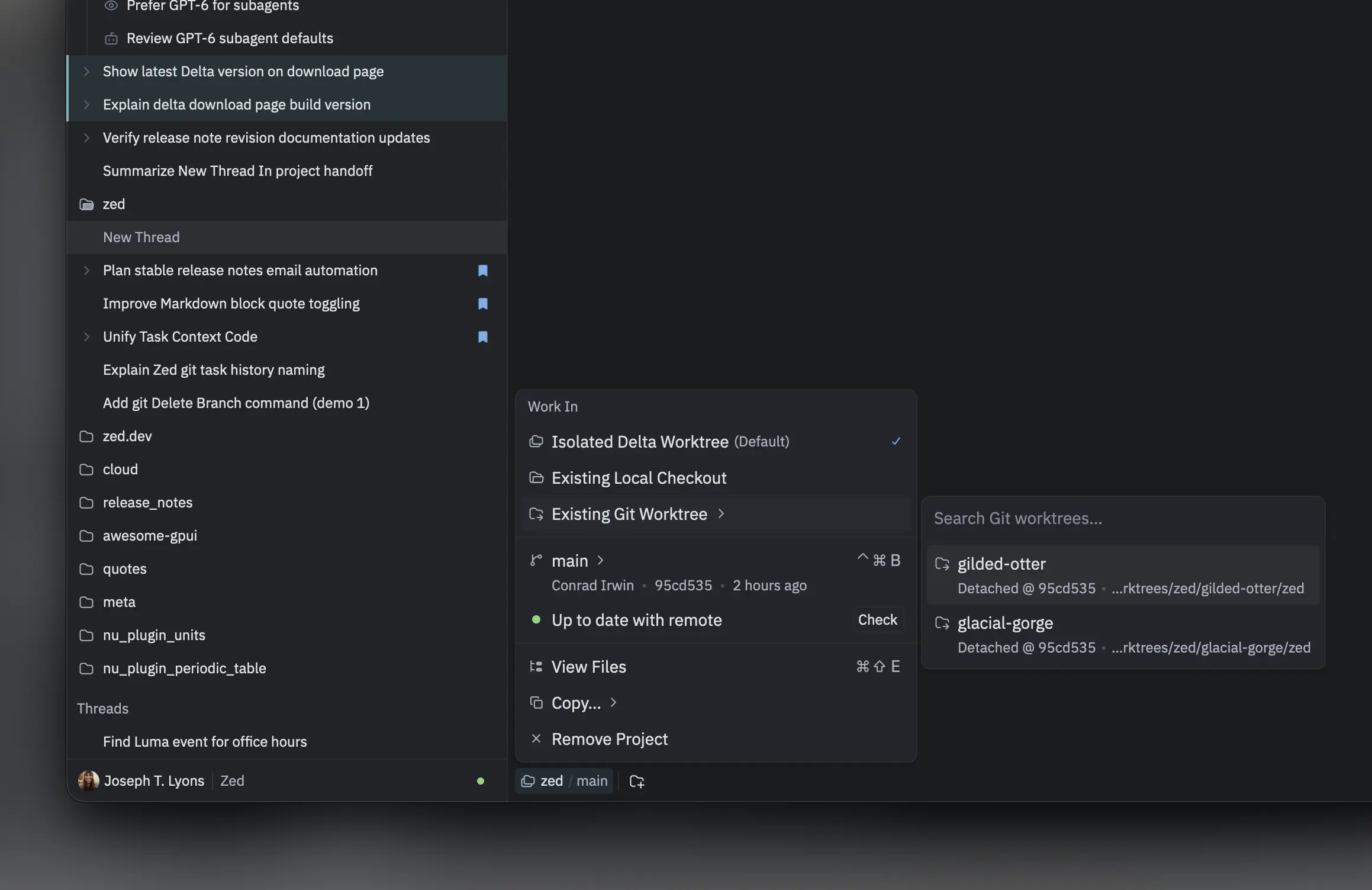
By default, new threads in Delta start up in isolated Delta-managed worktrees (cloned from the primary local checkout), and you’ve had the option to allow a thread to work directly on the primary local checkout as well.
Now, you can start up threads in your existing git worktrees.
This makes it easy to take work started in another tool and pick it up in Delta.
You can find these options in the Project Settings menu.
Create an organization from Delta
This is a simple one, but one worth calling out. Choose Create Organization from Delta’s user menu to open the setup form on the Zed dashboard.
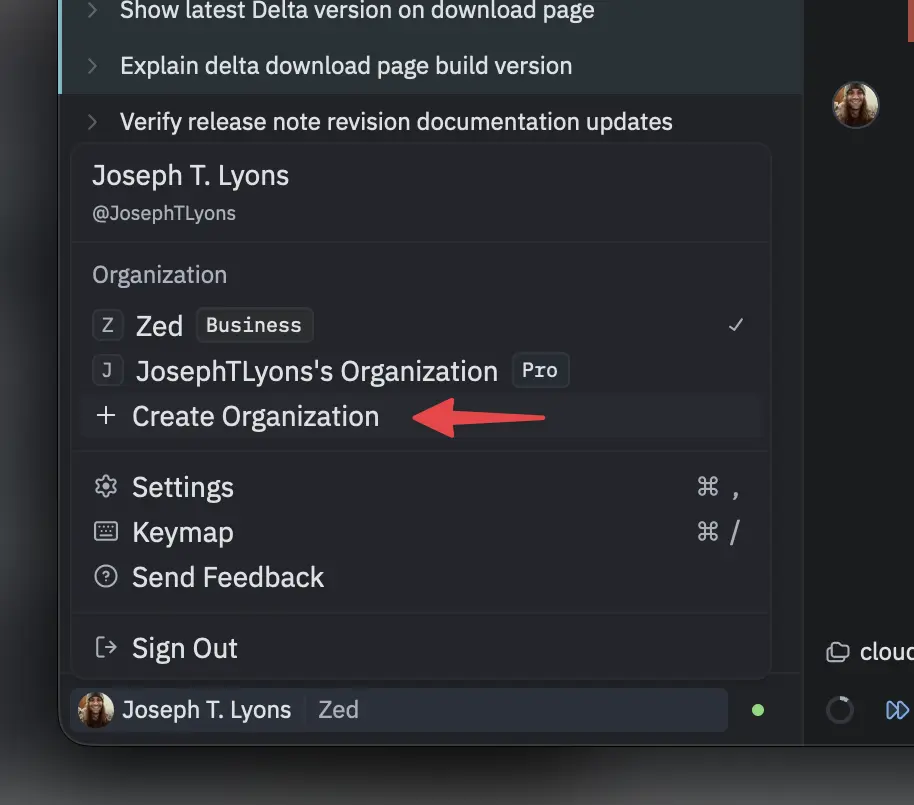
An organization is what unlocks team collaboration in Delta. When you’re ready, share a thread with everyone in your organization, and teammates can find it under All Threads at delta.dev/threads without needing a link. From there, you can work in the same thread together in real time, or pick it up later where someone else left off.
For a closer look at what collaboration in Delta can be like, Nathan’s article walks through a few standout moments where he, Antonio, and Cole moved smoothly between sync and async work while planning a large feature in Delta, without anyone having to wade back through heaps of agent output to catch up.
Honorable feature mentions
- Jump to subthreads: Use the new fuzzy finder to jump to any subthread of the current parent thread.
Open it via
cmd-jon macOS orctrl-jon Windows and Linux. - Link to a specific passage: Select text in your thread, right-click, and choose
Copy Link to Selection. People with access who open the link see the passage in focus, with the surrounding conversation dimmed. - Collapse all tool output: Delta collapses some low-value tool output by default. To collapse all tool output into expandable summaries, enable
Collapse All ToolsinSettings->Thread. - Context window breakdown: Choose
View Context Breakdownin the context window popover to see how much of the prompt is used by the system prompt, messages, thinking, and tools.
How Delta’s harness measures up
Alongside new features, we’ve been taking a close look at the quality of the code Delta writes. Behind the scenes, we’ve been diving deep into how Delta’s harness behaves and what users might expect when coming from tools like Claude Code or Codex. The headline result from Anant’s testing:
On the models we tested, Delta matches or exceeds the native harness on accuracy for all of them, while costing 0.80×–1.12× as much per pass depending on the model.
Pass rates only tell part of the story, though. In Beyond Pass Rate, Anant also looks at Delta’s human-first approach to producing code and arranging tool calls, and at what benchmarks can’t measure yet.
Wrapping up
We’ve been working on DeltaDB and Delta in private for over a year now, and we’re thrilled to finally share them with everyone.
There’s plenty more on the way, from MCP and ACP support to persistent cloud environments for your agents; the roadmap has the details.
In the meantime, if you’ve been using Delta, we’d love to hear about your experience: type /delta-feedback in any thread, or choose Send Feedback from the user menu.
If you haven’t tried Delta yet, go give it a download.
See you in October’s edition! 🍂🎃👻